
Monitor and schedule with Pro
Check existing redirects regularly, or set a start and end for a temporary offer.
Set up a daily redirect check
Recurring monitoring checks your active rule set; you do not need to create a migration project first. Start with saved rules you have reviewed and an activated Pro installation.
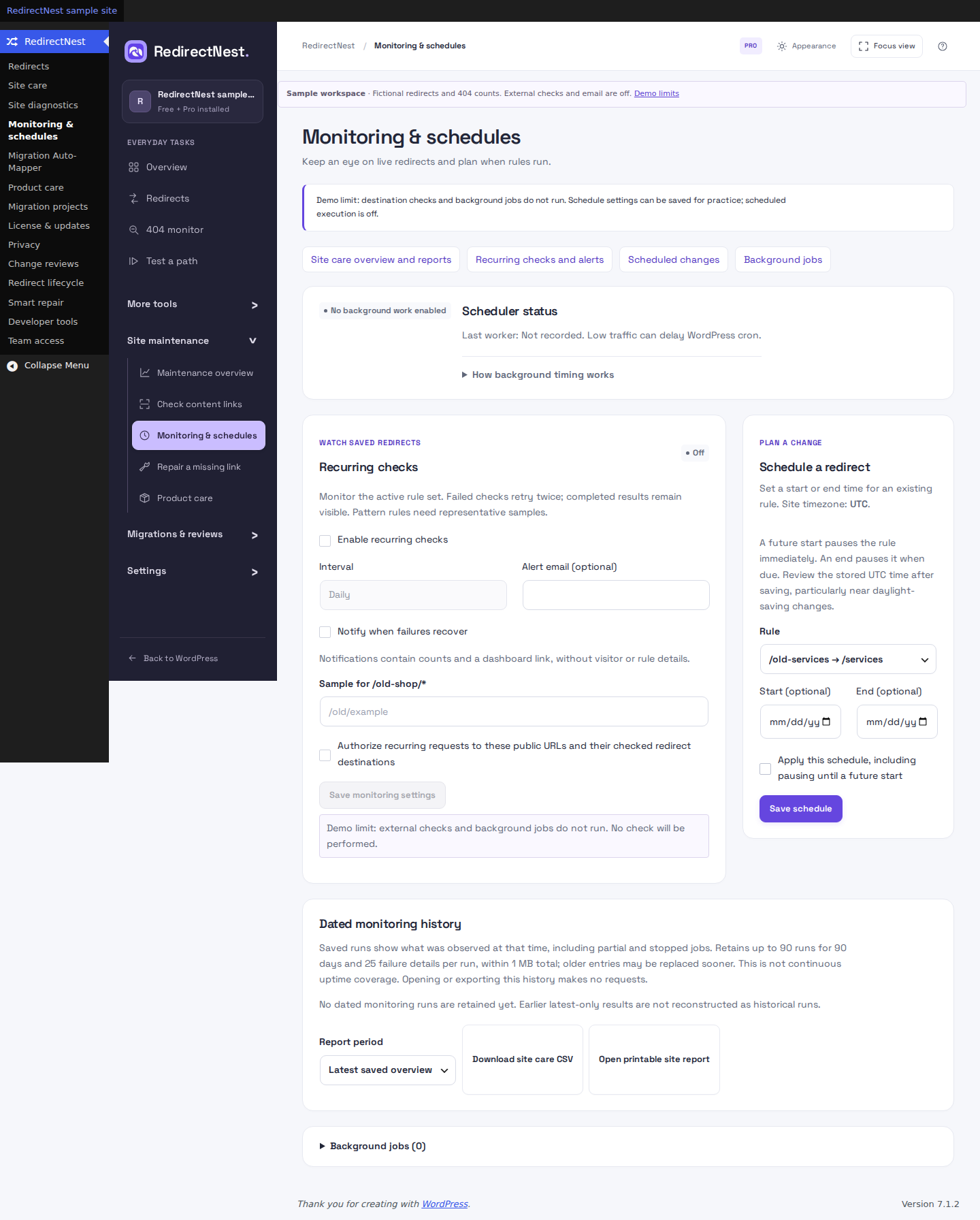
- Open RedirectNest → Monitoring & schedules. Under Recurring checks, select Enable recurring checks.
- Set Interval to Daily. Hourly and Weekly are also available. Enter an Alert email (optional) if you want changed-failure notifications, and select Notify when failures recover if wanted.
- For each wildcard or regex rule, enter a representative matching path in its Sample for… field. For
/old-shop/*, one example is/old-shop/shoes. One sample does not prove every possible match. - Review and select Authorize recurring requests to these public URLs and their checked redirect destinations, then choose Save monitoring settings.
- After WordPress cron runs, check Scheduler status, Background jobs and the Latest completed report. Inspect its timestamp, passed count and rules that need attention.
What success looks like: a dated completed report for the current rules. Saving settings alone is not a completed check. A first healthy check may not send mail; alerts cover changed failures and optional recovery.
Requests go to the configured public URLs and redirect destinations. Checks require a supported direct PHP cURL connection; private-network targets are not supported. No recurring checks run until you enable and authorize them. The receiving server can see the requested URL and your server IP.
 View full screenshot
Schedule a temporary offer
For example, send /weekend-offer to /sale during one promotion window. This schedules an existing rule’s enabled state; it does not create a sale page or change its content.
- On staging, create the rule under RedirectNest → Redirects: Old path
/weekend-offer, Destination/sale, Response 302 · Temporary. Clear Rule enabled before saving so it starts paused. - Open Monitoring & schedules → Schedule a redirect and choose that saved Rule.
- Choose a future Start (optional) and a later End (optional). For a weekend offer, use the coming Friday at 09:00 and the following Monday at 09:00. Times use the WordPress site timezone shown above the form.
- Review Apply this schedule, including pausing until a future start, select the confirmation and choose Save schedule. Review the stored UTC times after saving, especially near daylight-saving changes.
What happens to this rule
- Before the start
- Paused. This rule does not redirect the offer path.
- When the start is applied
- Enabled. The saved rule sends visitors to
/salewith a 302 response. - When the end is applied
- Paused again. The rule stays saved; WordPress handles the path normally.
A future start pauses even an already-enabled rule immediately. You can also set an end only to stop an existing enabled rule later. Removing a schedule leaves the rule in its current enabled or paused state. If the rule is edited or removed, review any schedule marked as a conflict.
Keep Pro enabled and WordPress cron running. Changes happen when scheduled tasks run, which can be late; use a verified hosting scheduler when timing matters. Review overdue changes after reconnecting a released or revoked activation.
Stop recurring checks
Clear Enable recurring checks and save monitoring settings. You can stop even if a saved sample, email address or interval is no longer valid. Stopping cancels queued monitoring work and clears pending monitoring emails. It remains available when Pro activation is unavailable.
Use Cancel job for a separate migration job. Manage scheduled rule changes separately in the schedules section.
Understand alerts and completed results
Optional emails contain counts and a dashboard link. Delivery depends on the WordPress mail setup; mail acceptance is not proof of delivery. The plugin checks the latest completed report, current monitoring setting and recipient before sending queued mail. An older failure alert is discarded after a newer recovery, even when recovery emails are off.
A missing pattern sample or an unavailable safe connection is not a passing check. Review the specific result and read the check-results guide before relying on it.
Ordinary expiry does not stop the work
Once activated, Pro monitoring and schedules keep working on that installation after ordinary subscription expiry and during service outages. Refunds, disputes and explicit revocation can block new Pro operations after verification. Existing redirects and recovery remain available.
Export dated care reports
Choose a rolling 7, 30 or 90-day UTC report and export CSV or print it. Reports show retained monitoring runs and content-scan observations with their actual dates. Completed, partial and stopped runs remain distinguishable; missing, partial or expired evidence is not a successful recheck.
Monitoring retains at most 90 run summaries for 90 days within 1 MB, with at most 25 failure details per run. Content scans retain up to ten scope summaries for 30 days, with 50 dated target observations per scope and a 2 MB total archive. Export needed detail before continuing or before retention removes it. These reports do not calculate recovered revenue or establish whole-site health.
HISTORICAL CONTEXT
Earlier update notes
These notes explain changes introduced before 0.10.6. Use the current Free 1.1.2 and Pro 1.1.2 releases; the older version numbers are not extra installation steps.
If upgrading from before 0.5.5
Some case-insensitive regex schedules can report a conflict after the rule-identity fixes introduced in 0.5.5. Review the current rule and recreate an affected schedule with the intended times. Re-enter missing monitoring samples and run fresh checks. Use the current 0.8.0 packages; these are compatibility notes for older saved data.
These guides describe Free 1.1.2 and Pro 1.1.2. Current downloads and availability.